> ## Documentation Index
> Fetch the complete documentation index at: https://fyre.bot/llms.txt
> Use this file to discover all available pages before exploring further.
> Learn how to configure Fyre's forms module and create forms.
# Forms
## Creating & Updating Forms
To create a new form, use `/forms create`. This command supports the following options:
* `name` - The name for the form (max 32 chars).
* `description` - A short description of the form (max 100 chars).
* `channel` - The channel that this form's submissions will be posted in (text channel only).
To update an existing form, use `/forms update`. This command supports the following options:
* `form` - The form ID to update (autocomplete).
* `name` - The name for the form (max 32 chars).
* `enabled` - If the form should be enabled (Yes or No).
* `description` - A short description of the form (max 100 chars).
* `channel` - The channel that the form's submissions will be posted in (text channel only).
## Form Questions
Each form can have up to 25 questions, here's how to add, update, and remove questions.
To add a question to a form, use `/forms questions add`. This command supports the following options:
* `form` - The form ID to add a question to (autocomplete).
* `name` - The name of the question (max 45 chars).
* `type` - The type of question to add (text or select).
* `required` - If the question is required (Yes or No).
* `style` - The style of the question (Short or Paragraph).
* `description` - The description of the question (max 100 chars).
* `placeholder` - A placeholder answer for the question (max 100 chars).
* `choices` - A comma separated list of choices for select questions (max 25 choices).
* `min-length` - The minimum length of the question answer.
* `max-length` - The maximum length of the question answer.
* `allow-multiple-choices` - If multiple choices should be allowed for select questions (default: No).
To update a question, use `/forms questions update`. This command supports the same options as above.
To remove a question from a form, use `/forms questions remove`. This command supports the following options:
* `form` - The form ID to remove a question from (autocomplete).
* `question` - The question ID to remove from the form (autocomplete).
## Ping Roles
Ping roles are roles that Fyre will ping/mention when a new form submission is created.
You can add or remove ping roles using
`/forms roles add type:Ping Role` and `/forms roles remove type:Ping Role`.
## Required Roles
Required roles are roles that a member requires to fill out the form.
A member must have one of the required roles to fill out a form.
You can add or remove required roles using
`/forms roles add type:Required Role` and `/forms roles remove type:Required Role`.
## Confirmation Prompt
Every form has a confirmation prompt that is enabled by default,
this is to prevent accidental form submissions from being created.
Users will be shown this confirmation prompt whenever they attempt
to start a form submission via a form panel or the `/form` command.
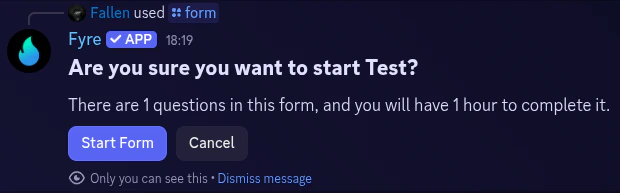 You can customize this confirmation prompt to say whatever you prefer easily using `/forms confirmation`.
This command support the following options:
* `form` - The form ID to update (autocomplete).
* `enabled` - Whether the confirmation prompt is enabled for this form (Yes or No).
* `delay` - The delay in seconds a user must wait before starting the form (default: none, min: 5, max: 30).
* `mode` - The mode for displaying the confirmation prompt (Plain or Container, default: Plain).
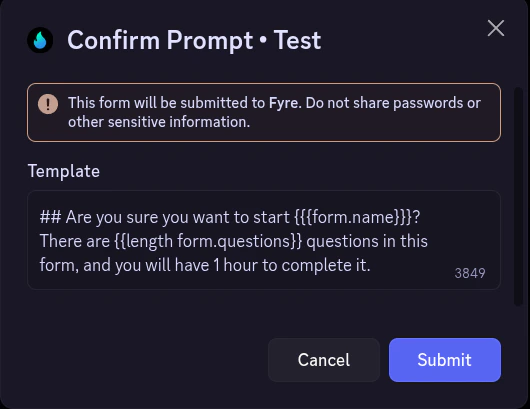
After using this command, a modal will popup allowing you to enter a custom template for the confirmation prompt.
This template supports [Guild](/templating/variables#guild%2Fserver-variables)
and [Form](/templating/variables#feature-specific-variables) variables.
You can customize this confirmation prompt to say whatever you prefer easily using `/forms confirmation`.
This command support the following options:
* `form` - The form ID to update (autocomplete).
* `enabled` - Whether the confirmation prompt is enabled for this form (Yes or No).
* `delay` - The delay in seconds a user must wait before starting the form (default: none, min: 5, max: 30).
* `mode` - The mode for displaying the confirmation prompt (Plain or Container, default: Plain).
After using this command, a modal will popup allowing you to enter a custom template for the confirmation prompt.
This template supports [Guild](/templating/variables#guild%2Fserver-variables)
and [Form](/templating/variables#feature-specific-variables) variables.
 ## Form Panels
Just like tickets, you can create form panels.
These panels can have buttons or a select menu for members to easily start form submissions.
To create a form panel, use `/forms create-panel`. This command supports the following options:
* `type` - The type of panel to create (Buttons or Select Menu).
* `channel` - The channel to send the panel in (text channels only).
* `colour` - A hex code colour to use in the panel.
* `button-name` - The name of the button if you're making a one button panel.
* `select-menu-placeholder` - The placeholder text in the select menu if you're making a select menu panel.
After using this command, a modal will popup allowing you to
select form categories and enter a template for the form panel.
Form panels only support [guild template variables](/templating/variables#guild%2Fserver-variables)
## Form Panels
Just like tickets, you can create form panels.
These panels can have buttons or a select menu for members to easily start form submissions.
To create a form panel, use `/forms create-panel`. This command supports the following options:
* `type` - The type of panel to create (Buttons or Select Menu).
* `channel` - The channel to send the panel in (text channels only).
* `colour` - A hex code colour to use in the panel.
* `button-name` - The name of the button if you're making a one button panel.
* `select-menu-placeholder` - The placeholder text in the select menu if you're making a select menu panel.
After using this command, a modal will popup allowing you to
select form categories and enter a template for the form panel.
Form panels only support [guild template variables](/templating/variables#guild%2Fserver-variables)